
Scenario Settings in the Admin UI
You can customize each scenario individually.

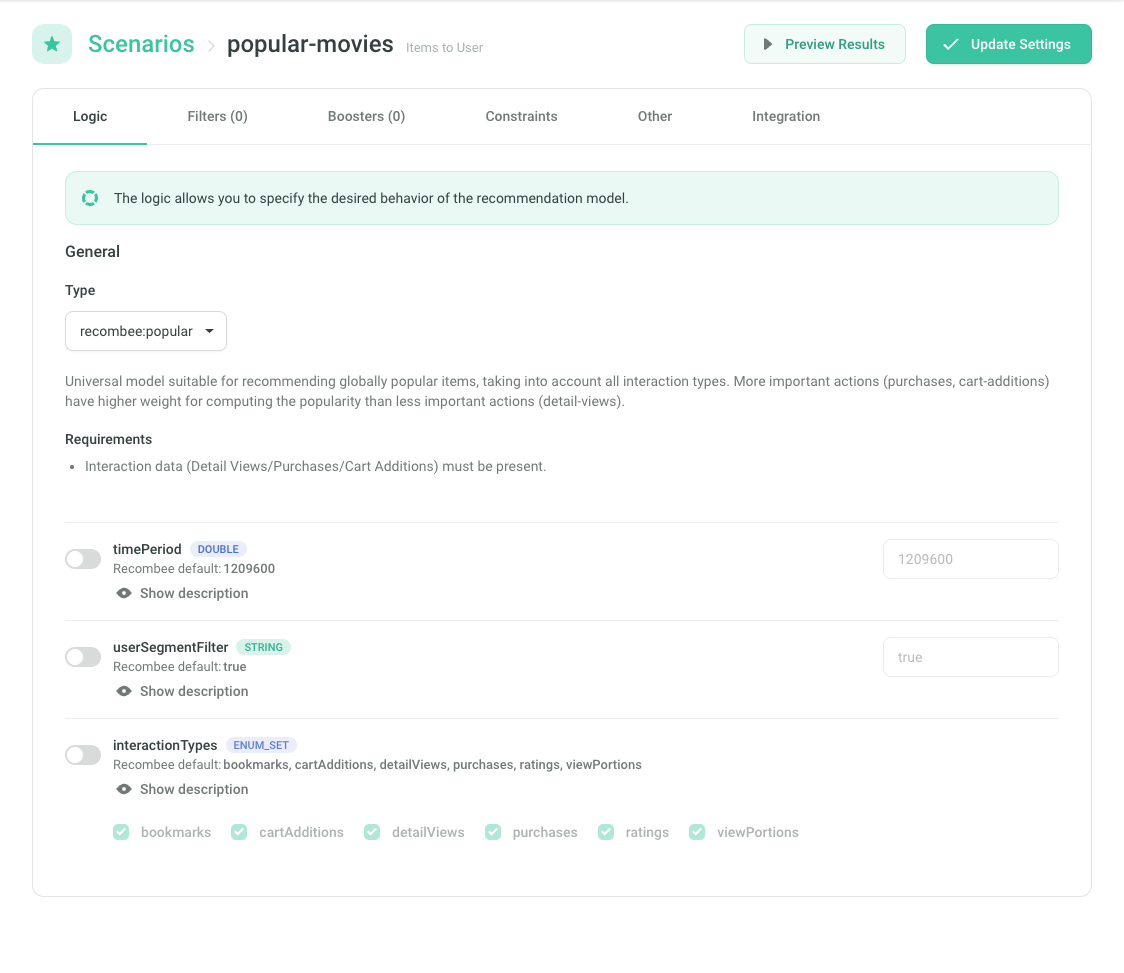
Logic
Logic defines the behavior of the recommendation model.
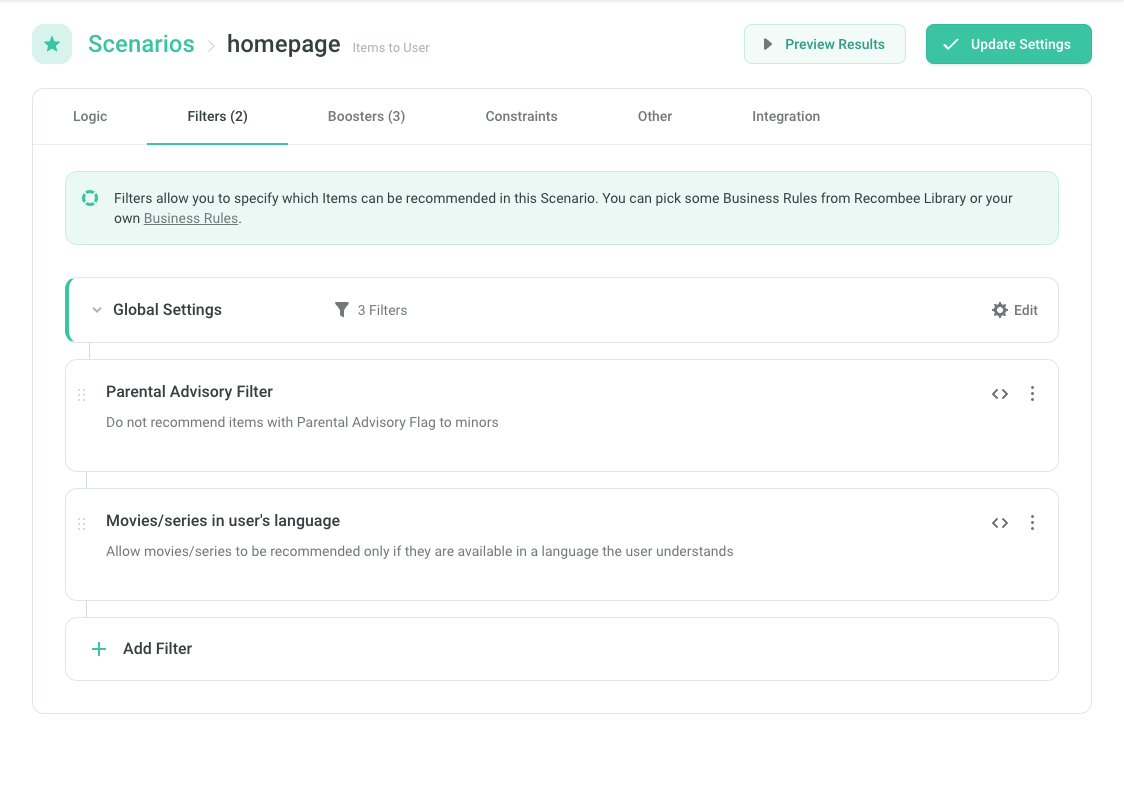
Filters
Filters determine which items can be recommended in this scenario. You can select filters from the Recombee library or create your own Business Rules.
An item can be recommended only if all filter rules assigned to the scenario are satisfied.
If you specify a filter as an API parameter, the filters from the Admin UI will be combined with it using the AND operator.
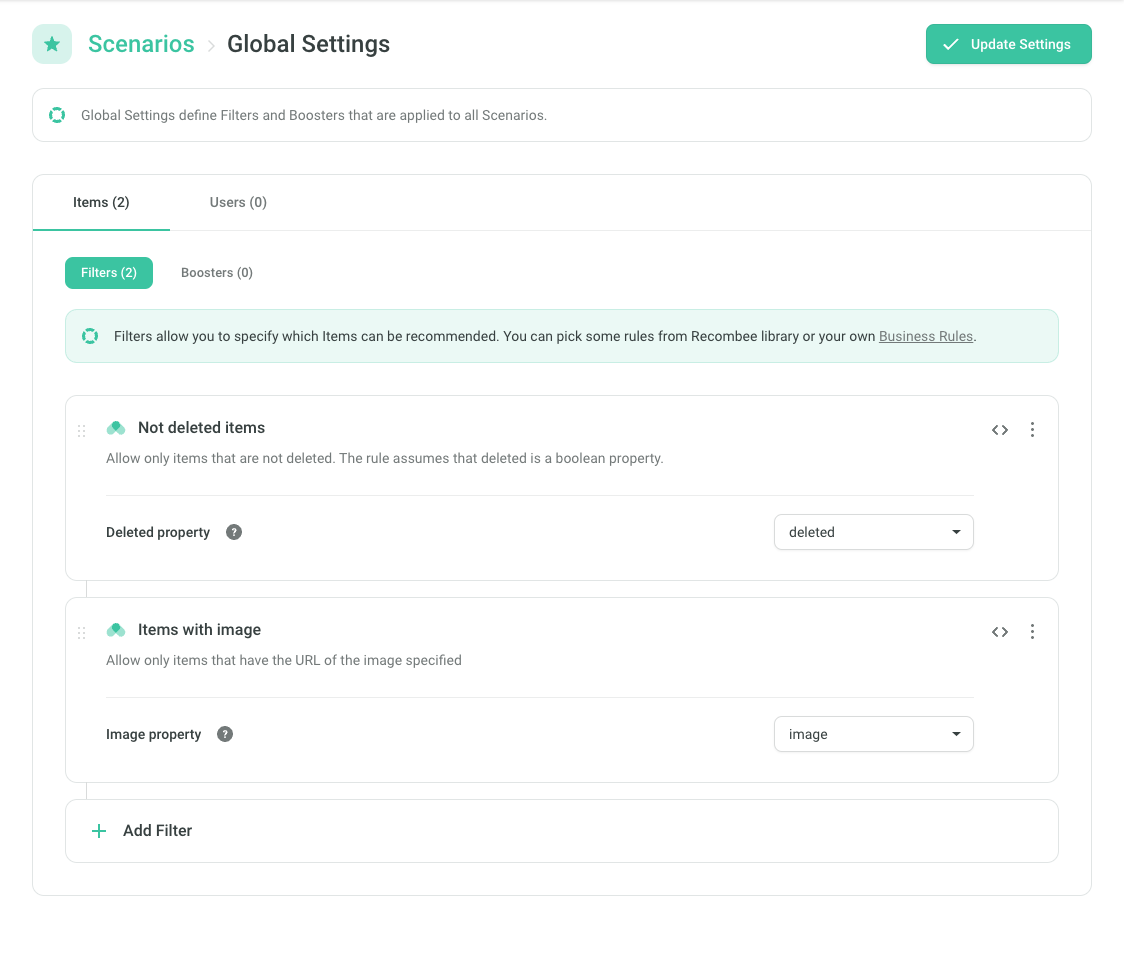
Global Settings
To apply filters to all scenarios, use Global Settings—for example, to always exclude unavailable items.
Rules defined in Global Settings are applied automatically to all scenarios, ensuring consistency across your application.
Boosters
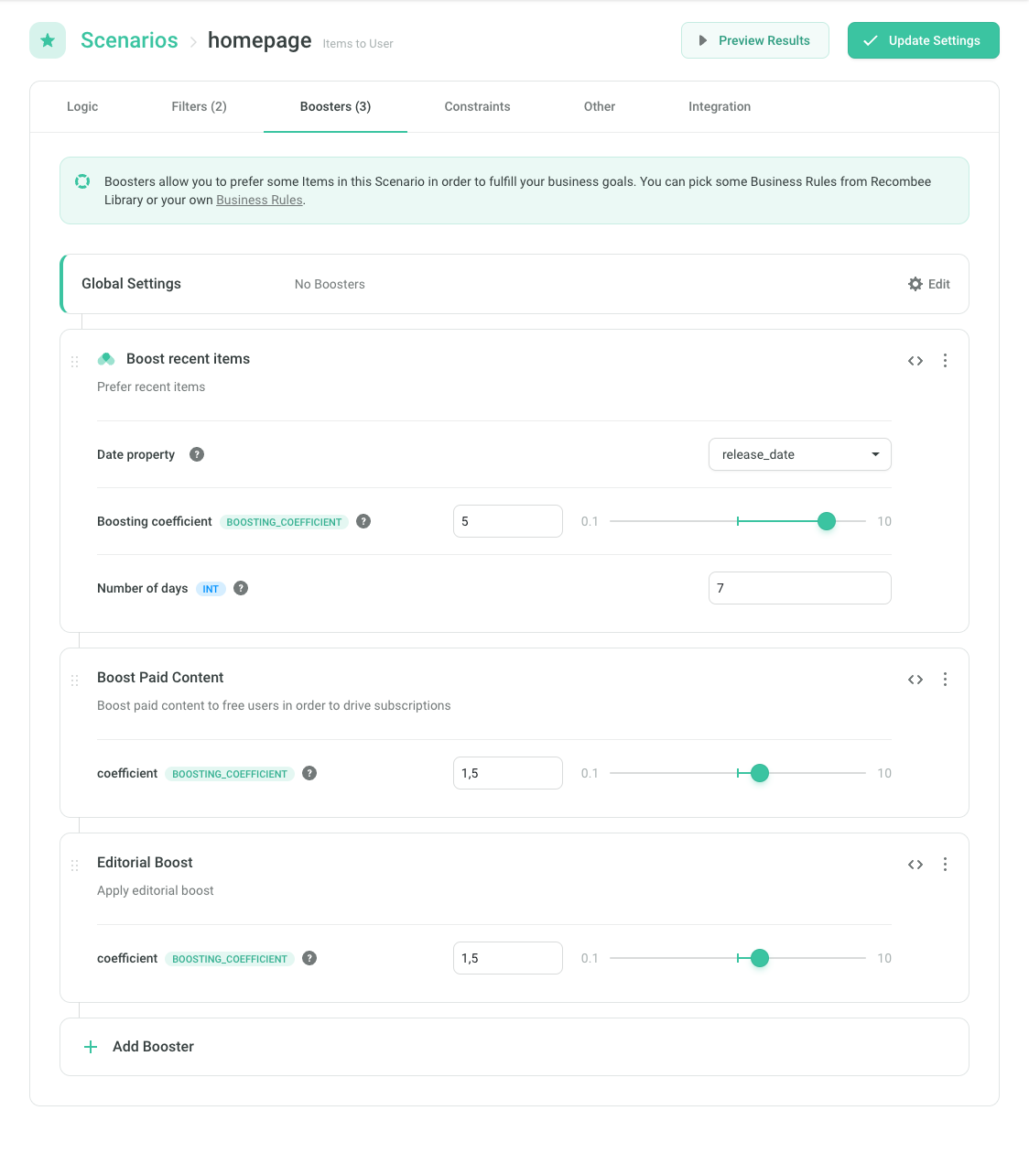
Boosters allow you to prioritize certain items within a scenario to support your business goals. You can use predefined booster rules or create your own Business Rules.
Each booster rule produces a numeric score for each item. The final boosting score is the product of the scores from all applied booster rules.
If you specify a booster as an API parameter, it will be combined with the Admin UI boosters using the * operator.
Constraints
Constraints define how frequently items sharing certain conditions can appear in recommendation results.
Examples:
- At most 2 items per category
- No more than 50% of items from a single genre
- Only one product per parent product ID
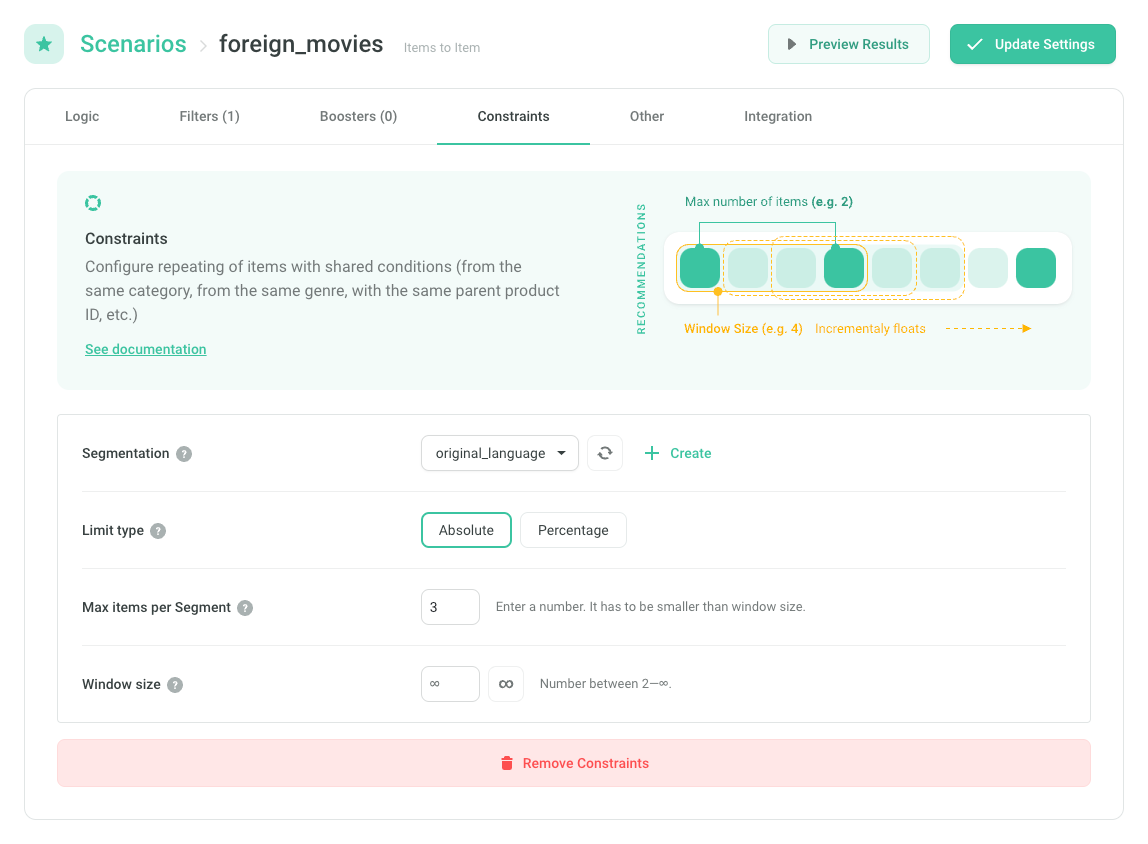
To use constraints, first create an Item Segmentation that represents the shared condition (e.g., category, genre, or brand).
Then, add the constraint to your scenario and set how many items per segment are allowed in the recommendations.
Limit Type
- Absolute — sets a fixed number of items per segment (e.g., max 3 per brand).
- Percentage — sets a proportion (e.g., max 25% from one brand).
Window Size
When using the Absolute limit type, the limit applies to all recommended items by default. To apply it to smaller groups, set a window size.
For example, with a max of 2 items per segment and a window size of 4, each consecutive group of 4 recommendations will contain at most 2 from the same segment.