
Because You Purchased
Introduction
The Because You Purchased scenario ensures your users receive recommendations based on their past purchases. By analyzing their purchasing history, we present a carefully curated list of complementary products to what your users bought before.
With Composite Recommendations, you can return both:
- The source item (the product the user recently purchased), and
- The recommended items (accessories or related items)
— all in a single API response.
Composite Recommendations Overview
Composite Recommendations combine multiple recommendation steps into one response.
They are requested via the Composite Recommendation API endpoint.
In this use case:
- Source: The product the user purchased (an Item)
- Result: Products that complement what the user has bought
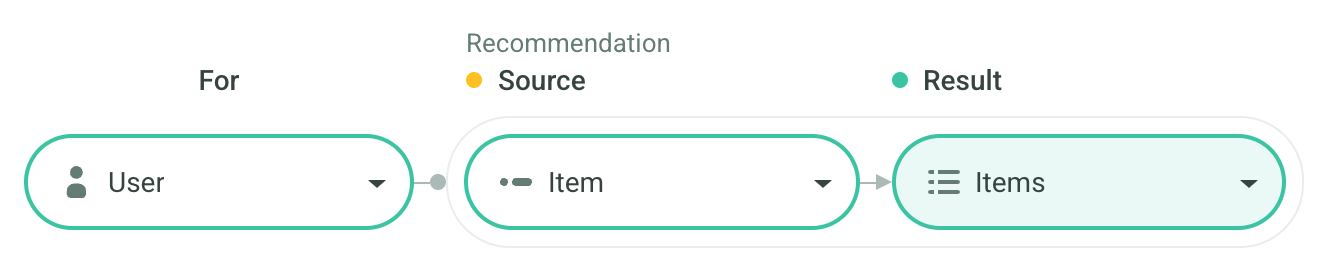
This setup ensures contextual recommendations that feel natural and personalized — “because you purchased X, you might also like Y.”
Scenario Setup
In the Recombee Admin UI, navigate to the Scenarios section and choose Create Scenario.
- Enter a Scenario ID. Select a distinctive label for your recommendation scenario, such as
because-you-purchased. - Set the Recommendation Type to Composite (see Composite Recommendations).
- Select the Template: ecommerce:because-you-purchased.
Logic
Within the ecommerce:because-you-purchased Logic, you can customize how the purchased asset is selected in the Source section using:
maxDaysAgo– to specify the maximum number of days since the user purchased the item for it to be considered for the "Because" selection.
Filters
You always want to recommend only the products that are in stock. Therefore you need to apply a Filter rule to allow only such products.
As it would be tedious and prone to error to add this rule to all the Scenarios, this rule shall be added to the Global Settings, so it is always applied everywhere.
You can select a predefined rule from the Recombee Library to allow only the available products.
Depending on how you represent availability in the catalog, it can be one of the following rules:
- Not deleted items - when you have a deleted property (true/false)
- Available items - when you have an available property (true/false)
- Items in stock [Google Merchant] - when you have a string available property with "in stock" as its value
Requesting Recommendations
There are two ways to show multiple personalized rows in your application:
- Using the API Client
Using an API Client of your choice, you can retrieve Because You Purchased recommendations via the Composite Recommendation API endpoint.
For more information navigate to the Integration tab of the Scenario in the Admin UI.
In order to request content for multiple rows with a single API request, use the Batch endpoint and put recommendation requests for all rows inside it.
Set the parameter distinctRecomms in order to deduplicate the assets among the rows.
If a user has not purchased anything in the time range given by the maxDaysAgo Logic parameter, the recommendation request returns null as the source and an empty list of recommendations.
In this case, the Because You Purchased section should not be displayed.
- Using the Widget SDK
For web applications built with HTML, CSS and JavaScript, the Widget SDKs support Composite Recommendations out of the box.
Place a widget on your page, with createRequest returning a Composite Recommendation request.
Design the row title with the SourceItemComponent parameter and the products inside it with ItemComponent.
In order to request content for multiple rows, simply place multiple widgets on the page. These will get deduplicated automatically, for the recommended items as well as for the source items (the purchased products).
For full code examples and in-depth guidance, see the relevant SDK documentation on Composite Recommendations: